

Image by Taylor Vick @tvick
Goals:
It is still strongly encouraged to use a www prefix subdomain (ex. www.example.com) vs a naked domain (ex. example.com).
So for this article www.example.com will be the primary domain, but if you want a naked domain to be your primary simply switch the steps done for www.example.com with example.com if following along.
AWS Services we're going to use:
1 . Setting up a domain in Route 53
AWS Route 53 offers purchasing a domain but for this article we're going to be using a domain purchased from a 3rd party site.
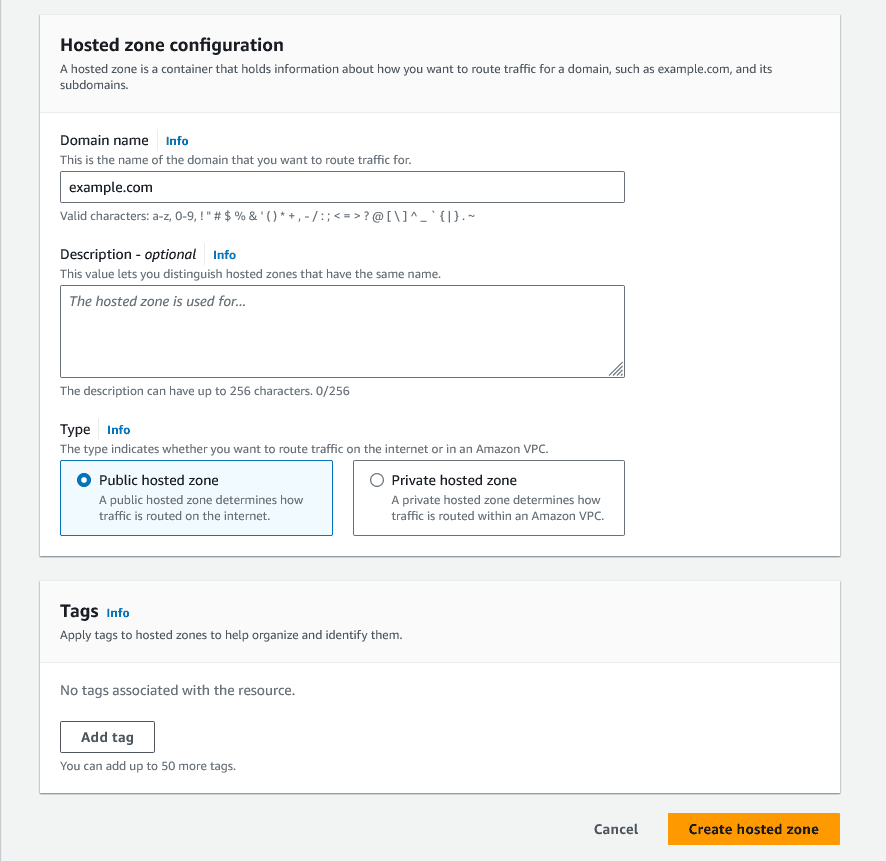
Firstly, we're going to navigate to Route 53 and create a public hosted zone.
We'll want to name this zone with our domain (no www regardless if using naked or subdomain).
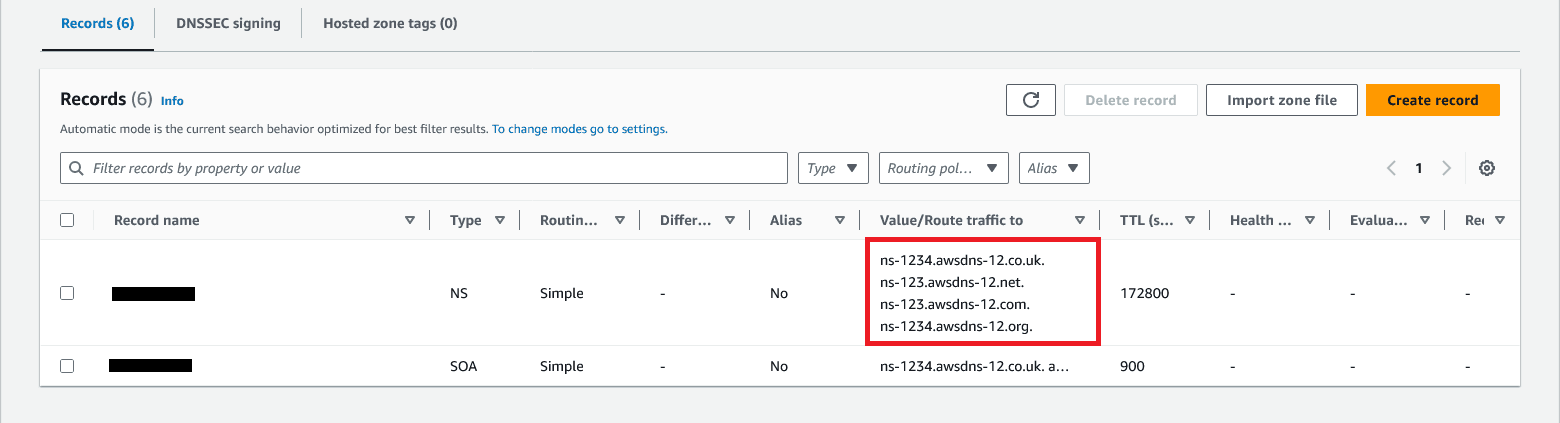
Once the hosted zone has been created we'll want to take the NS record values and use them as our domains custom DNS.
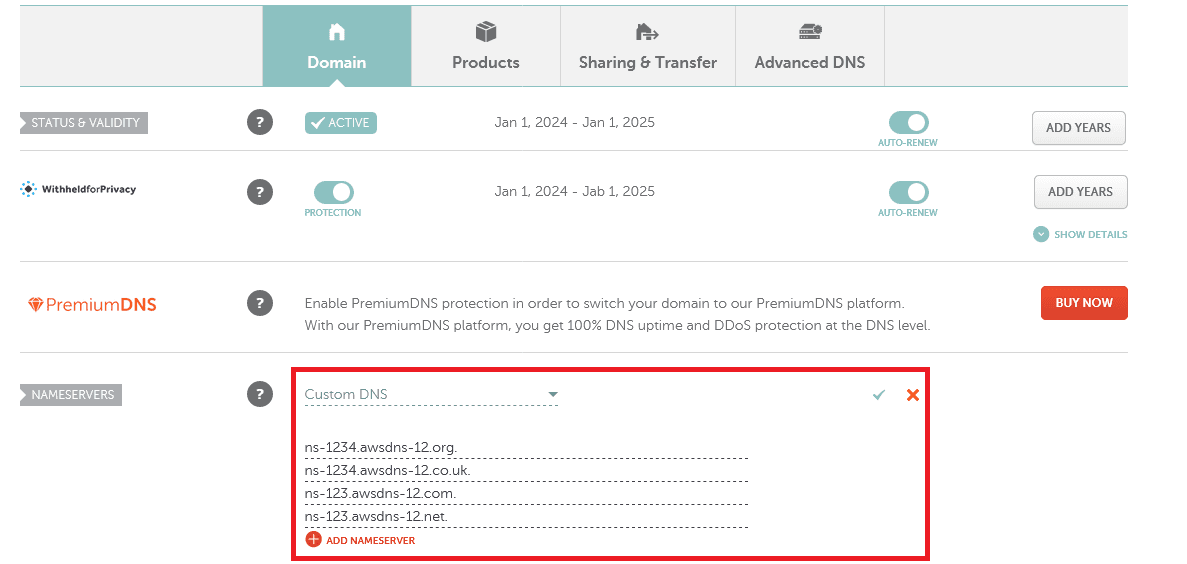
The image below is an example off how you'd set custom DNS on namecheap. Check your Registrar's documentation / help pages to find where these settings exist.
2 . Getting a Public SSL Certificate for HTTPS through AWS Certificate Manager (ACM).
Next we'll want to request a public certificate so we can down the line setup HTTPS. We'll want both the naked domain and www subdomain listed. For this article we'll use DNS validation.
If you're going to have a lot of subdomains for your site you can also include the wildcard subdomain (ex. *.example.com) which will ensure all subdomains will be valid and work.
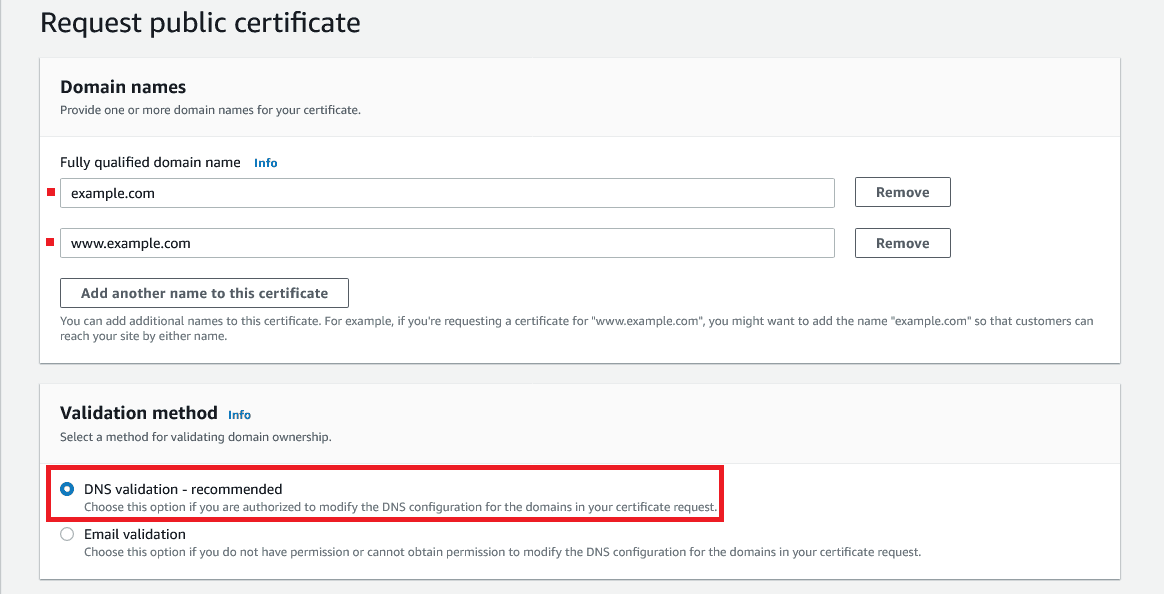
While the image shows succes, you'll need to click the Create Records in Route 53 before the validation can succeed.

3 . Creating the S3 buckets.
We'll want to create 2 buckets, one with the naked domain and one with the www subdomain. Default settings are fine, we'll setup Cloudfront to access the private bucket contents later.
Next we'll want to upload our first SPA at the root off the primary bucket, then within a folder matching the route name (ex. spa2) we'll want down the line, we'll want to upload the static build files of our second SPA.

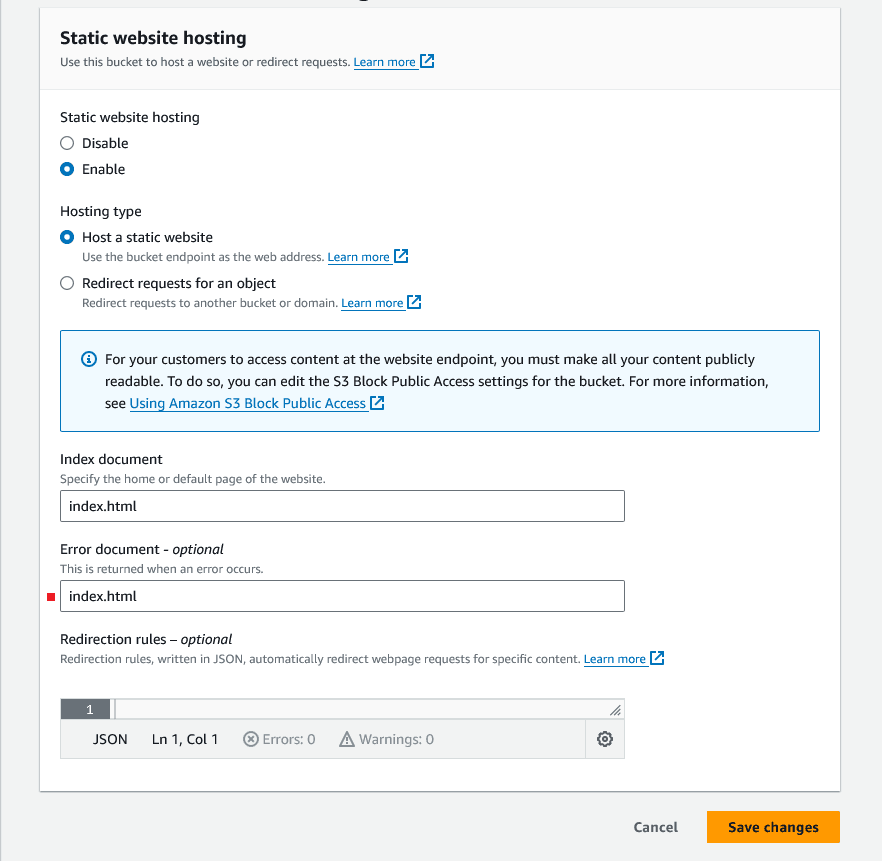
Now for our primary bucket with the www subdomain, we'll go to properties and enable static website hosting.
The error document isn't necassary for this setup, but it can be useful if the need arises to test the S3 bucket site hosting directly later.
The site won't be usable from the URL provided at this step since the bucket by default will be private. We'll resolve this by using cloudfront at a later step. Though if you simply want to host a static site without a CDN or concerns of SSL you can stop at this step and simply set the bucket public.
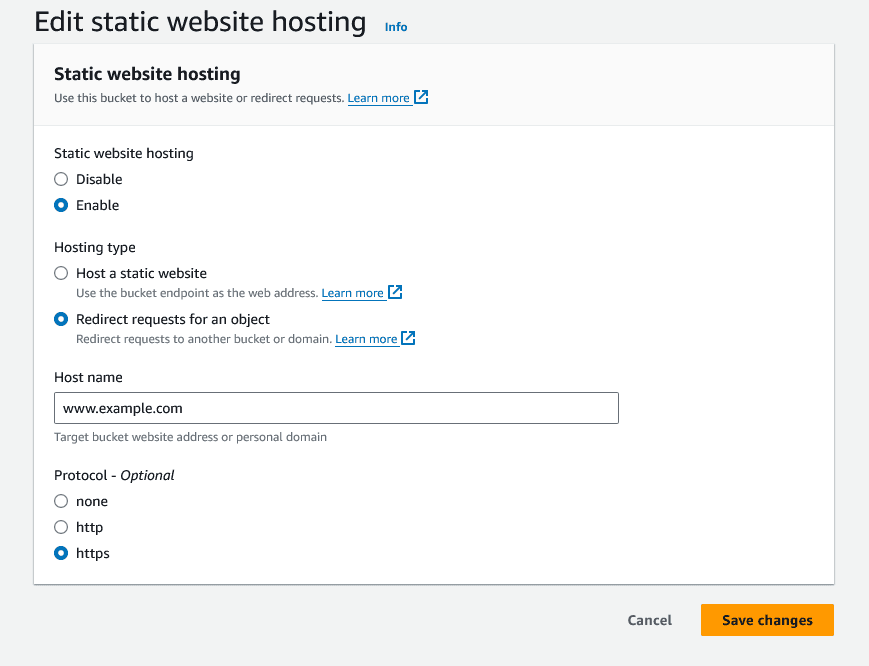
Now we'll setup the naked domain bucket to redirect to our primary URL setup. We'll once again go to the bucket's properties and scroll down to Static website hosting. Here we'll enable it and set the hosting type to redirect. For the host name we'll use our primary domain without any scheme.
4 . Cloudfront Setup
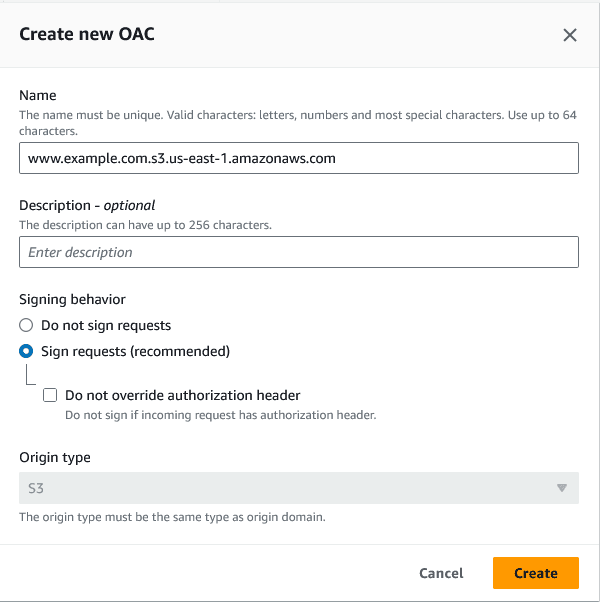
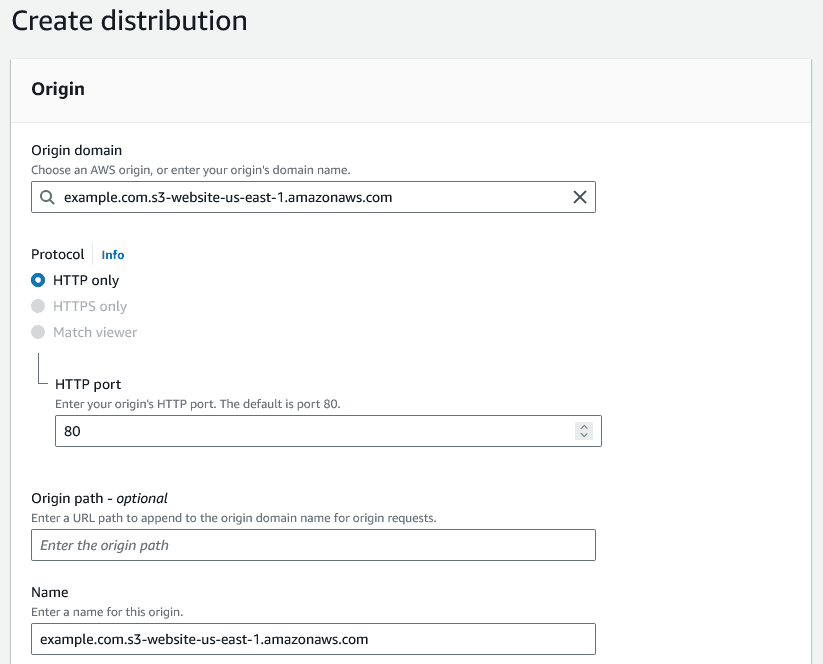
Now we need to create 2 Cloudfront Distrubtions. First we'll create the primary distrubition for our main url. We'll set the origin domain to the S3 bucket with the www subdomain. Then we'll add an Origin Access Control (OAC) this is how we will allow our cloudfront distrubtion to access our private S3 bucket, while keeping the bucket safe from external usage.
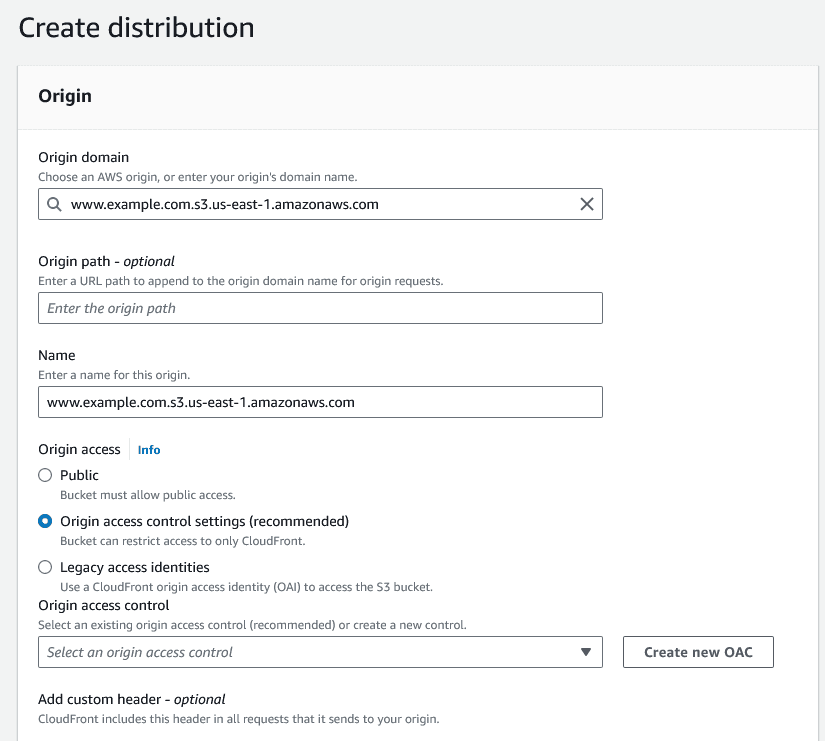
It's important to add the alternate domain name (CNAME) and the SSL certifcate here for this to work.
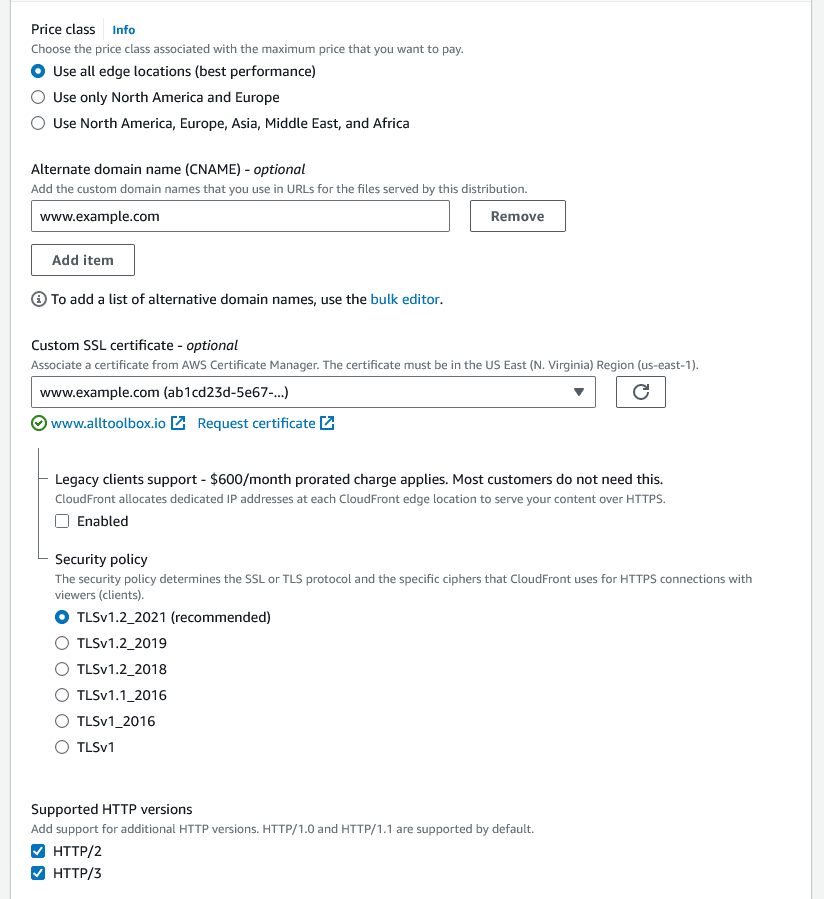
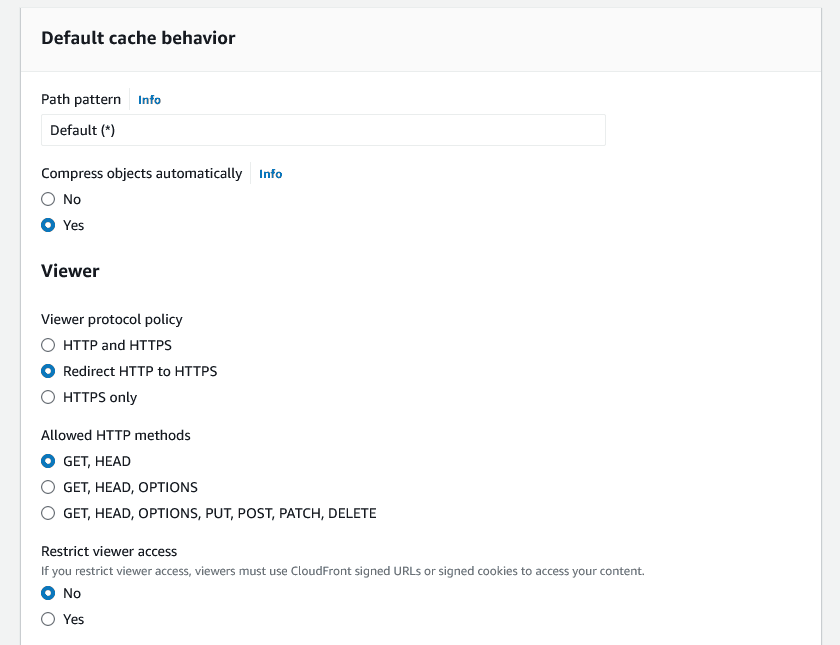
We'll also add the viewer protocol policy Redirect HTTP to HTTPS here.
Once the Cloudfront Distrubtion is made you'll be required to copy over this policy to the bucket policy. That can be found by navigating to your bucket going under permissions then down to bucket policy. Here is the sample policy to copy over, you'll want to update the 2 highlighted lines, with your s3 bucket name, and the cloudfront arn for the distrbution that has access to said bucket.
Policy
{
    "Version": "2008-10-17",
    "Id": "PolicyForCloudFrontPrivateContent",
    "Statement": [
        {
            "Sid": "AllowCloudFrontServicePrincipal",
            "Effect": "Allow",
            "Principal": {
                "Service": "cloudfront.amazonaws.com"
            },
            "Action": "s3:GetObject",
            "Resource": "arn:aws:s3:::www.example.com/*",
            "Condition": {
                "StringEquals": {
                    "AWS:SourceArn": "arn:aws:cloudfront::123456789:distribution/123456789"
                }
            }
        }
    ]
}
For the cloudfront distrubtion we'll also want to modify the Error response.
For the HTTP error code of 403 we'll want to customize the error response and point to our /index.html file with a status code of 200,
If we don't do this Cloudfront will return an Error to the user while we'd prefer to show our SPA's specific not found route instead for a better user experience.

Next We'll create a distrubtion for the naked domain bucket. All the settings for the distrubtion setup will be the same as the previous distrubtion. With the only difference being the origin domain pointing to the website url of the other bucket, and the Alternate domain CNAME being the naked url.
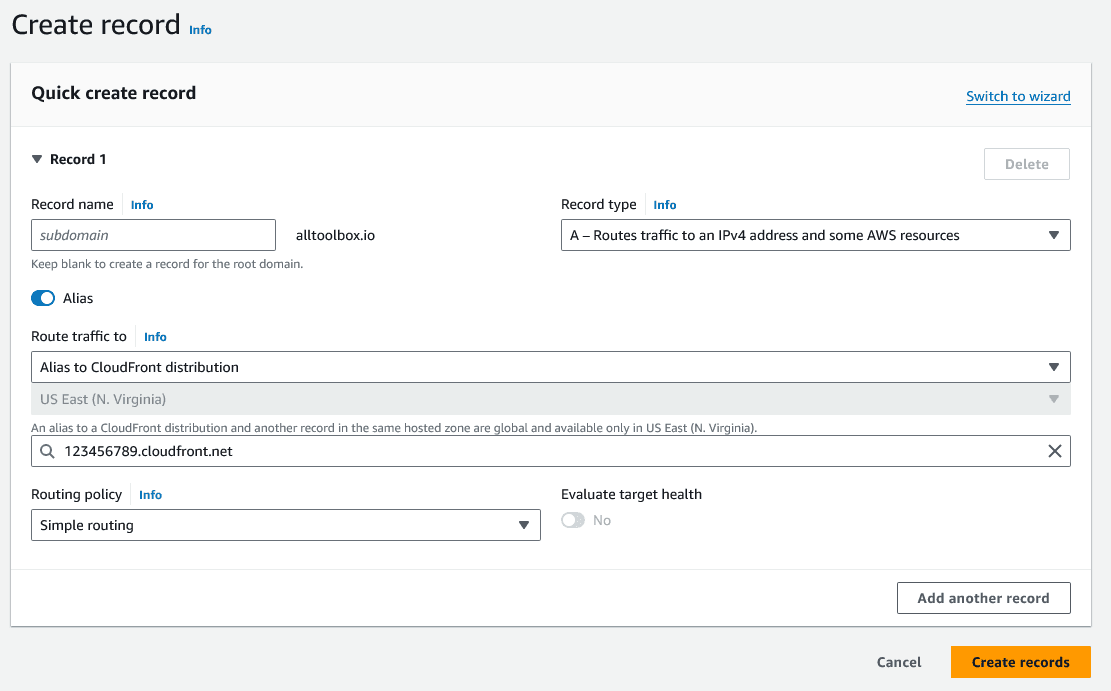
Next we'll want to create A records back in route 53 to map our urls to the respective cloudfront distribution instances. Again one record mapping the naked domain to cloudfront distribution and one with the www subdomain.
Once both distrubtions are deployed and assuming no additional time for propagation is needed. Your root index SPA will now be avaiable, along with automatic redirection for the following cases:
example.com -> https://www.example.comhttp://example.com -> https://www.example.comhttps://example.com -> https://www.example.comwww.example.com -> https://www.example.comhttp://www.example.com -> https://www.example.com5 . Lambda edge
It's also possible to use cloudfront functions at the viewer request instead for this purpose.
It's a good alternative if your routing logic is simple, and you won't require more than the simple HTTP request/response manipulation.
Cloudfront Function Docs
Next we're going to create a lambda@edge function this will allow us to programatically route traffic hitting our cloudfront distrubtion. Allowing us to serve the correct files for the various SPA we're going to be hosting under our domain.
For this article we're going to go with Node / Javascript for our lambda edge function.
Do note that the execution role off Basic Lambda@Edge permissions (for CloudFront trigger)
is required for this to function correctly.
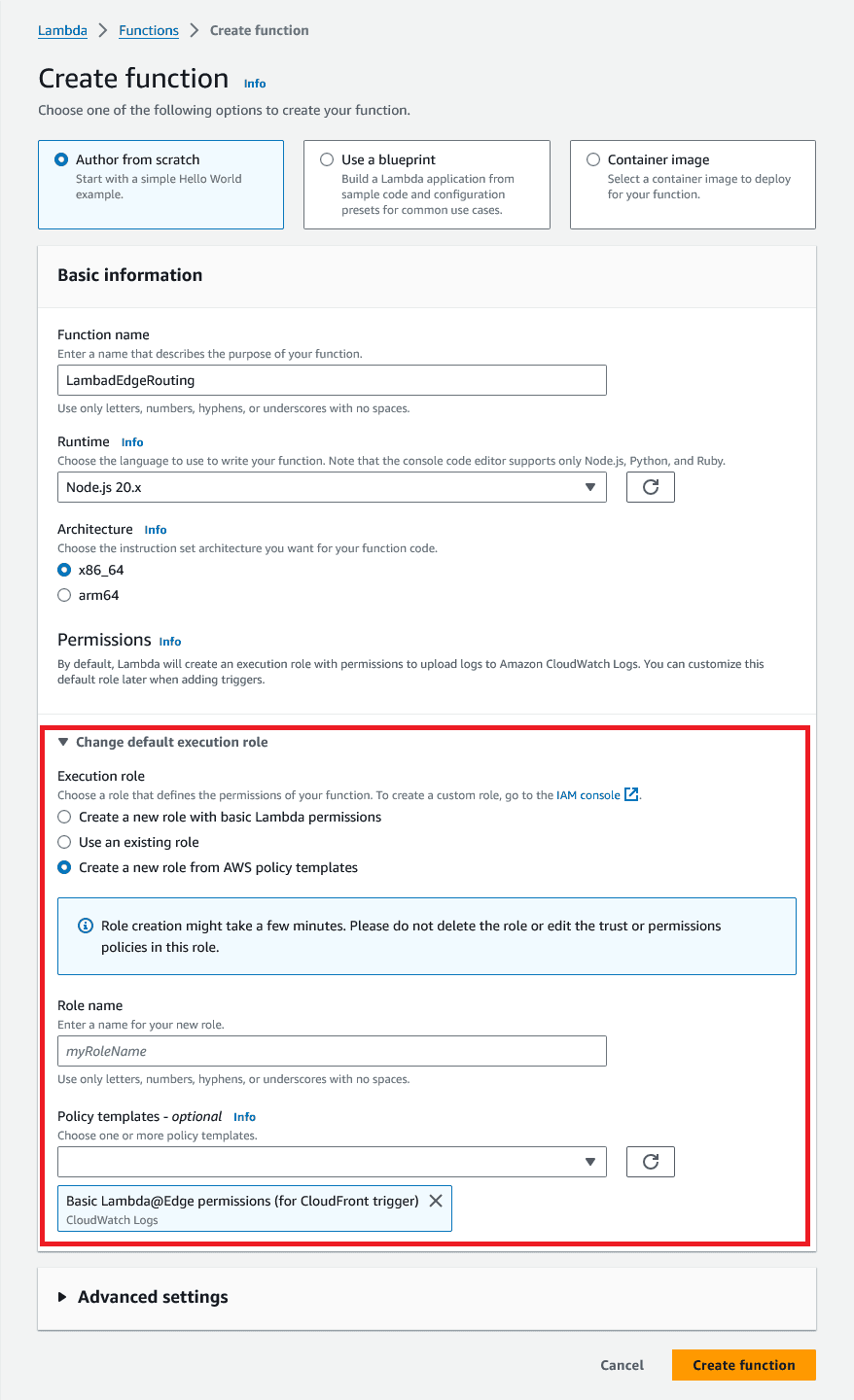
Here is a simple routing script that will always provide the requested resource, except for when the url is
example.com/spa2 in which case it will serve our other SPA.
Also take note we're excluding assets, this is because we don't need to
rewrite the request uri for the assets only the request for the /spa2/index.html file for the second SPA.
index.mjs
export const handler = async (event, context, callback) => {
    const request = event.Records[0].cf.request;

    const split_uri = request.uri.split("/");
    // first element will be empty ["", "start_of_path"]

    if (split_uri.length > 2) {
        if (split_uri[1] === "spa2" && split_uri[2] !== "assets") {
            request.uri = "/spa2/index.html";
            callback(null, request);
            return;
        }
    }

    callback(null, request);
};
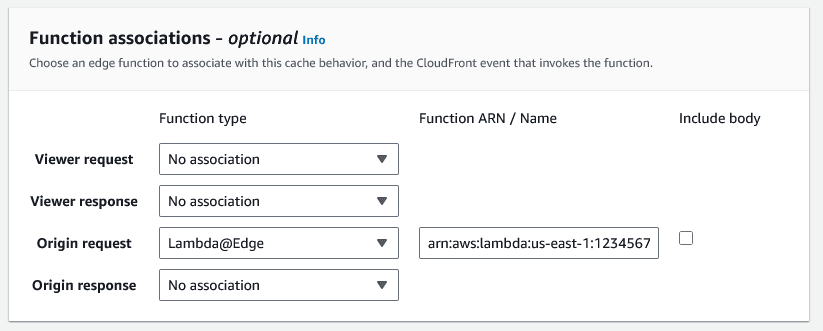
You can either add a cloudfront event trigger from the lambda@edge edit page, or you can add the function to cloudfront by going to your distrubtion behaviors selecting the lone behavior and editing it then scrolling down to function associations and changing the origin request as per image below.
With that you've finished setting up and hosting multiple static built SPA on AWS.
A few caveats, while cloudfront might display deployed in the dashboard its possible its going to take a longer period of time for the changes to fully propagate and be viewable at your url. If after roughly 24 hours it still doesn't work there is more than likely an issue with your configuration somewhere. Another cavaet is if you opened your url prior to making all these changes, your browser may be caching the html file served previously, simply use another device to test and see if you get the file you were expecting. If it works on another device then you're all set.

